Disable Speaker
If you're running Microsoft Windows you can disable the Internal speaker or PC speaker by following the below steps.
Enable Speaker
- Open Device Manager
- In Device Manager click View and click "Show hidden devices"
- This should make "Non-Plug and Play Drivers" visible in Device Manager.
- Expand Non-Plug and Play Drivers by clicking the plus and double-click Beep.
- Within the "Beep properties" window click the Driver tab.
- Under the driver tab if you wish to temporarily disable this device click the Stop button. If you wish to permanently disable this device under the Startup Type select Disabled.
if you wish to temporarily enable this device click the Start button. If you wish to permanently enable this device under the Startup Type select System.

Sunday, June 15, 2008
Disabling the internal speaker

Saturday, May 31, 2008
Google easter eggs
Type the following texts in search box and click " i'am feeling lucky "
xx-boark
xx-klingon
xx-piglatin
xx-elmer
xx-hacker
google holiday
google circa
elgoog
google easter egg
google mentalplex
google scholar
google suggest
google moms
google heart page
xx-boark
xx-klingon
xx-piglatin
xx-elmer
xx-hacker
google holiday
google circa
elgoog
google easter egg
google mentalplex
google scholar
google suggest
google moms
google heart page
Sunday, April 20, 2008
Worm.Win32.Netsky Removal Process
Worm.Win32.Netsky is a new rogue anti-spyware program trojan, which is part of a fake malicious software engineered by Internet hackers. Worm.Win32.Netsky-related anti-spyware is a fake anti-spyware program. Do NOT purchase Worm.Win32.Netsky related spyware under any circumstances since it is a fake anti-spyware software.
The following process will help you remove it from your system easily and safely.
Worm.Win32.Netsky Manual Removal Process:
1. Click on the Start Menu button, then click on the Control Panel option, and then Double-click on the Add or Remove Programs icon.
2. Locate Worm.Win32.Netsky and double-click on it to uninstall Worm.Win32.Netsky. Follow the screen step-by-step screen instructions to complete uninstallation of Worm.Win32.Netsky.
3. Restart the computer.
4. When it has completed uninstalling you can close Add or Remove Programs and your Control Panel.
5. Close all programs.
6. Stop Worm.Win32.Netsky process. If you do not know how to stop a running process, click here to read more.
7. Delete the following infected files from your system.
EasyAV.exe
EasyAV
secound_document4.pif
e-mail3.pif
approved_file7.pif
Remove Worm.Win32.Netsky with SmithfraudFix:
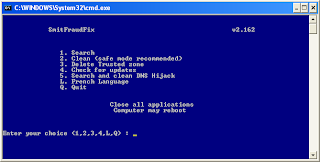
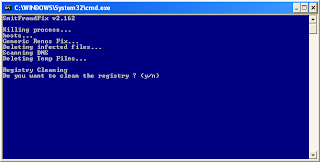
1. Download SmithfraudFix tool and save it to your desktop.
2. Reboot your computer in Safe Mode (before the Windows icon appears, tap the F8 key continually)
3. Double-click SmitfraudFix.exe
4 Select 2 and hit Enter to delete infect files.
5. You will be prompted: Do you want to clean the registry ? answer Y (yes) and hit Enter in order to remove the Desktop background and clean registry keys associated with the infection.
6. The tool will now check if wininet.dll is infected. You may be prompted to replace the infected file (if found): Replace infected file ? answer Y (yes) and hit Enter to restore a clean file.
7. A reboot may be needed to finish the cleaning process. The report can be found at the root of the system drive, usually at C:\rapport.txt
Restore Trusted and Restricted site zone
1. To restore Trusted and Restricted site zone, select 3 and hit Enter.
2. You will be prompted: Restore Trusted Zone ? answer Y (yes) and hit Enter to delete trusted zone.
Search
1. Select 1 and hit Enter to create a report of the infected files. The report can be found at the root of the system drive, usually at C:\rapport.tx
(Disclaimers: These instructions are free and not guaranteed to work. Please use it at your own risks. We are not responsible for any damages.)
The following process will help you remove it from your system easily and safely.
Worm.Win32.Netsky Manual Removal Process:
1. Click on the Start Menu button, then click on the Control Panel option, and then Double-click on the Add or Remove Programs icon.
2. Locate Worm.Win32.Netsky and double-click on it to uninstall Worm.Win32.Netsky. Follow the screen step-by-step screen instructions to complete uninstallation of Worm.Win32.Netsky.
3. Restart the computer.
4. When it has completed uninstalling you can close Add or Remove Programs and your Control Panel.
5. Close all programs.
6. Stop Worm.Win32.Netsky process. If you do not know how to stop a running process, click here to read more.
7. Delete the following infected files from your system.
EasyAV.exe
EasyAV
secound_document4.pif
e-mail3.pif
approved_file7.pif
Remove Worm.Win32.Netsky with SmithfraudFix:


1. Download SmithfraudFix tool and save it to your desktop.
2. Reboot your computer in Safe Mode (before the Windows icon appears, tap the F8 key continually)
3. Double-click SmitfraudFix.exe
4 Select 2 and hit Enter to delete infect files.
5. You will be prompted: Do you want to clean the registry ? answer Y (yes) and hit Enter in order to remove the Desktop background and clean registry keys associated with the infection.
6. The tool will now check if wininet.dll is infected. You may be prompted to replace the infected file (if found): Replace infected file ? answer Y (yes) and hit Enter to restore a clean file.
7. A reboot may be needed to finish the cleaning process. The report can be found at the root of the system drive, usually at C:\rapport.txt
Restore Trusted and Restricted site zone
1. To restore Trusted and Restricted site zone, select 3 and hit Enter.
2. You will be prompted: Restore Trusted Zone ? answer Y (yes) and hit Enter to delete trusted zone.
Search
1. Select 1 and hit Enter to create a report of the infected files. The report can be found at the root of the system drive, usually at C:\rapport.tx
(Disclaimers: These instructions are free and not guaranteed to work. Please use it at your own risks. We are not responsible for any damages.)
Monday, April 14, 2008
How Torrent works - Security
Torrent does not involve any type of active desktop software, unlike other file transfer services such as LimeWire and Napster. There are multitudes of Web sites throughout the Internet where you can search for Torrents. Torrents are active Internet connections that download a specific file you are looking for--referred to in the Torrent network as “seeds.” In order for a seed to be available, someone with the file you are looking for must have the Torrent window open. The Torrent window can either be open when someone is downloading the file for themselves from another seed, or once the file has been downloaded, the Torrent window can remain open to allow other people to download the completed file.
Something that makes Torrent unique is that you are never downloading a single completed file from a single vendor. Instead, you are downloading small segments of data that when put together, create the desired file.
Torrent Security
Torrent is a much safer service than other peer-to-peer networks because of how it functions. While other peer-to-peer services allow a certain degree of access to a shared folder or someone’s hard drive, Torrent users cannot share anything outside of the desired file type that is in an open Torrent window.
Due to the fact that you are only downloading segments of the file as opposed to the full thing, it also makes it incredibly difficult (if not impossible) to transmit viruses through the Torrent system. There are a number of people who are opposed to peer-to-peer technologies because of possible security concerns, however, virtually none of these concerns are found in the Torrent service.
Thursday, March 20, 2008
Remove Win32 AutoRun Worm-Funny UST scandal
Win32 AutoRun Worm-Funny UST scandal worm create a hidden background service (xmss.exe). It copied itself on Local disk and Windows Directory (%Windir%). Terminated “Windows Task Manager”, Windows Command Prompt (DOS-Prompt) & crashed System Internal Process Explorer (procxp.exe).
Files created by this worm
* x:autorun.inf
* x:xmss.exe
* x:Funny UST Scandal.avi.exe
* %Windir%\autorun.inf
* %Windir%\xmss.exe
* %Windir%\Funny UST Scandal.avi.exe
How to remove
1. Disabled System Restore for Temporary - KB 264887
2. Boot Windows in Safe Mode - KB 315222
3. In Windows Safe Mode, Open Windows Registry Editor
Windows Start > Run > Regedit
Browse to the following registry settings
HKEY_LOCAL_MACHINE\SOFTWARE\Microsoft\WindowsNT\CurrentVersion\Winlogon\Shell
Replace the value 'explorer.exe, xmss.exe' with 'exporer.exe'
4. Delete all the following files
* C\autorun.inf
* C\xmss.exe
* C\Funny UST Scandal.avi.exe
* X:\autorun.inf
* X:\xmss.exe
* X:\Funny UST Scandal.avi.exe
* %Windir%\autorun.inf
* %Windir%\xmss.exe
* %Windir%\Funny UST Scandal.avi.exe
5. Clean All Windows Temporary Files
6. Restart the Windows
** edit registry values with false data can damage your OS **
Files created by this worm
* x:autorun.inf
* x:xmss.exe
* x:Funny UST Scandal.avi.exe
* %Windir%\autorun.inf
* %Windir%\xmss.exe
* %Windir%\Funny UST Scandal.avi.exe
How to remove
1. Disabled System Restore for Temporary - KB 264887
2. Boot Windows in Safe Mode - KB 315222
3. In Windows Safe Mode, Open Windows Registry Editor
Windows Start > Run > Regedit
Browse to the following registry settings
HKEY_LOCAL_MACHINE\SOFTWARE\Microsoft\WindowsNT\CurrentVersion\Winlogon\Shell
Replace the value 'explorer.exe, xmss.exe' with 'exporer.exe'
4. Delete all the following files
* C\autorun.inf
* C\xmss.exe
* C\Funny UST Scandal.avi.exe
* X:\autorun.inf
* X:\xmss.exe
* X:\Funny UST Scandal.avi.exe
* %Windir%\autorun.inf
* %Windir%\xmss.exe
* %Windir%\Funny UST Scandal.avi.exe
5. Clean All Windows Temporary Files
6. Restart the Windows
** edit registry values with false data can damage your OS **
Subscribe to:
Posts (Atom)